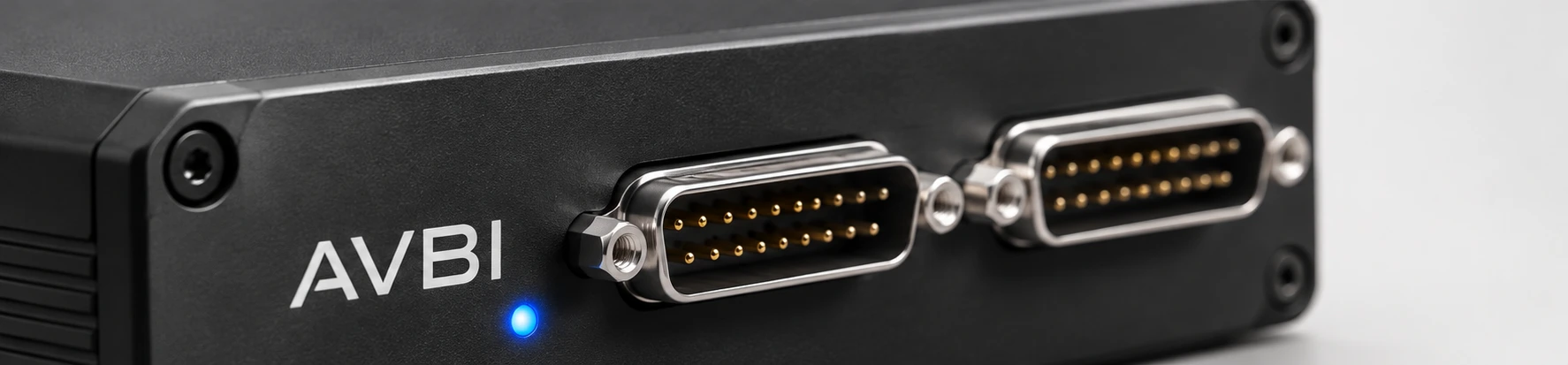
Put AVBI in place of an aircraft transmitter, watch the signals a receiver sees and repeat a test from a recording. The controls run on AVBI. Open them over Wi-Fi from any laptop, tablet or phone with a modern browser. No software installation required.
Choose a task to see its controls in the device’s browser interface. Select any screenshot for a closer look.
Check what the transmitter actually sent
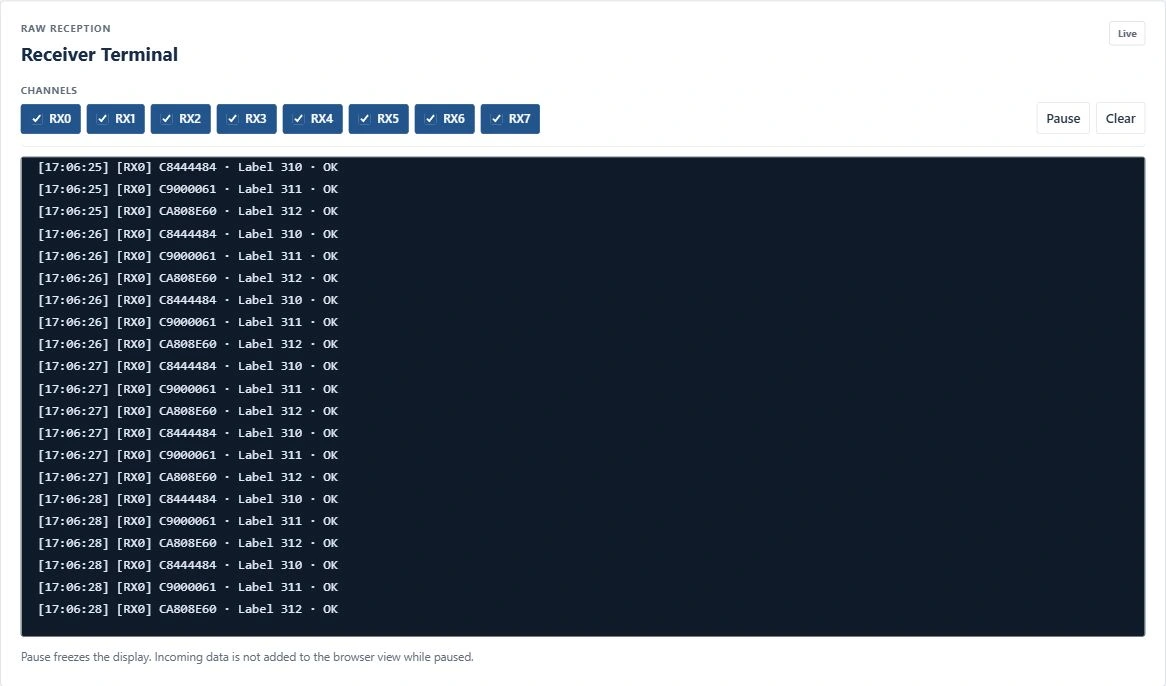
Watch the incoming ARINC 429 words on the channels connected to your bench. If a display shows an unexpected value, use the label and raw word to compare what the source sent with what the display interpreted.
⤢Raw view of the three signals used in the live decode example.
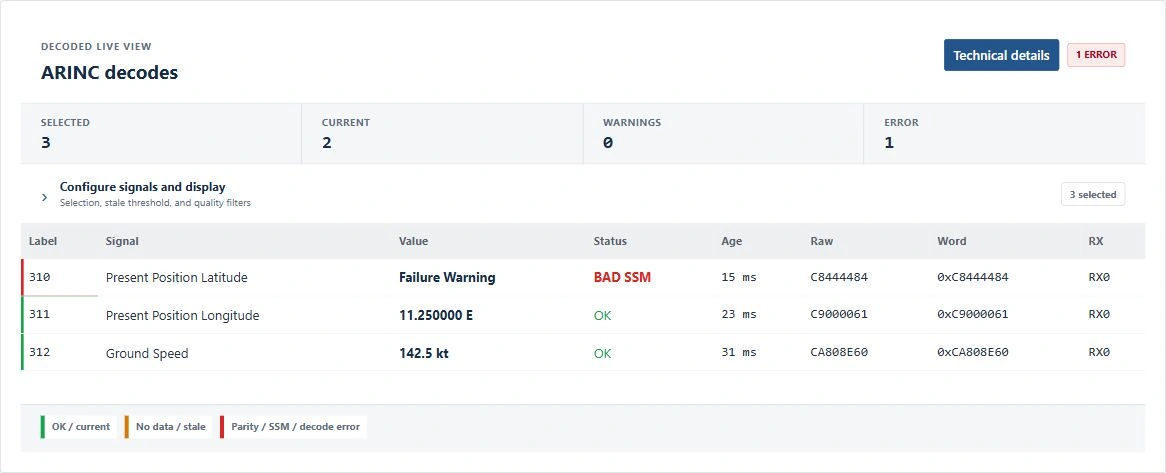
See which signal the source marked as failed
The receiver is still getting position messages. Latitude shows Failure Warning and BAD SSM, even though the word passed its parity check. Longitude and Ground Speed both show OK. You can see which measurement to investigate while the others keep updating.
⤢Example inputs on RX0. Longitude reads 11.250000 E and Ground Speed reads 142.5 kt.
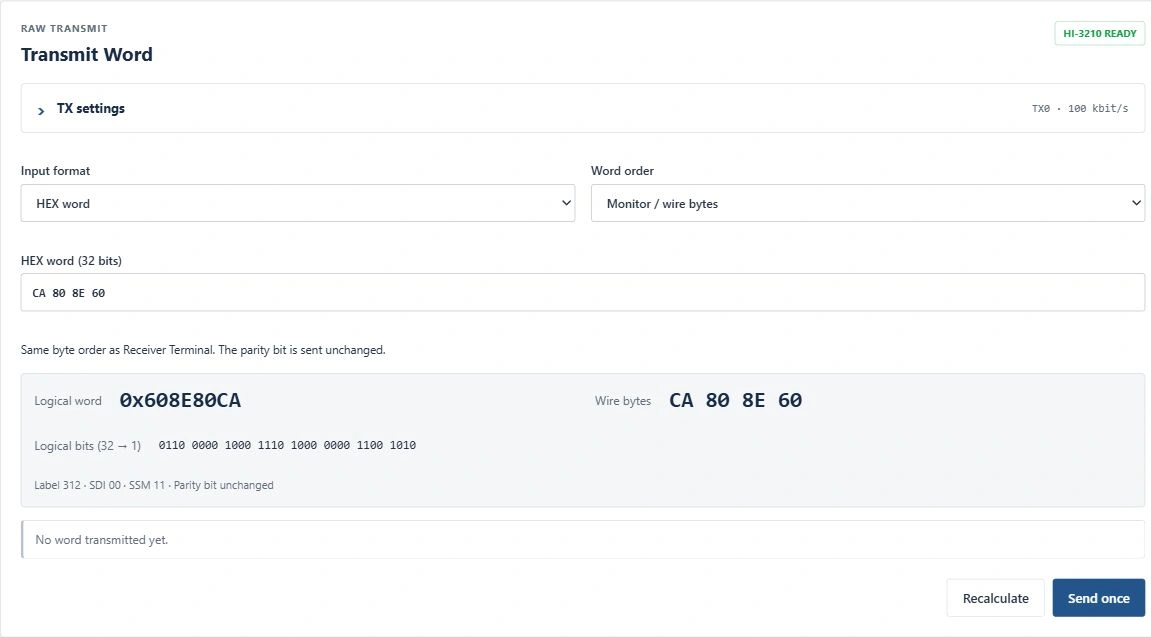
Give a receiver a known input
Send a test word and check the result on your instrument. Here the prepared word represents a ground speed of 142.5 kt, giving you a specific value to look for on the display.
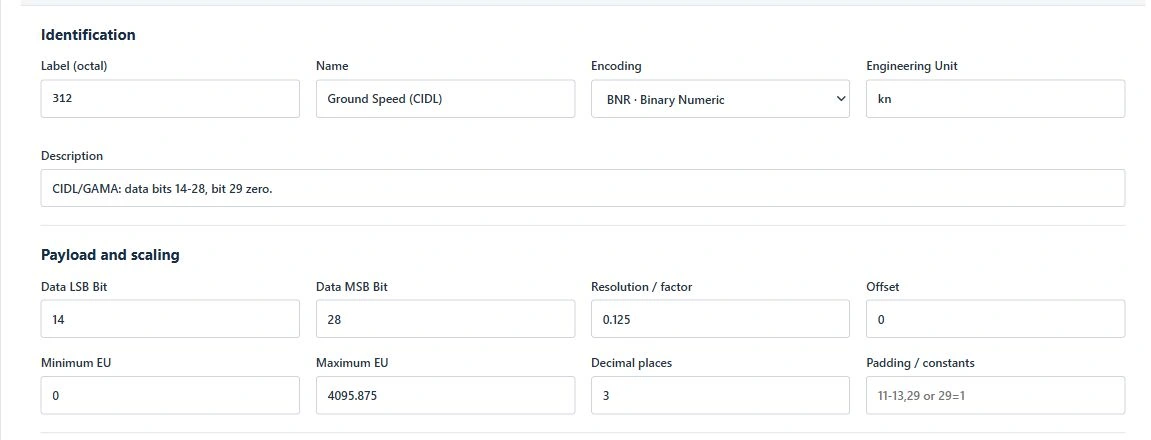
Give a label a name, choose its units and set how the transmitted value should be read. Apply the equipment’s status rules so the live monitor can flag an invalid measurement alongside the decoded value.
⤢Ground Speed configured as an engineering value in knots.
Keep the traffic around an intermittent fault
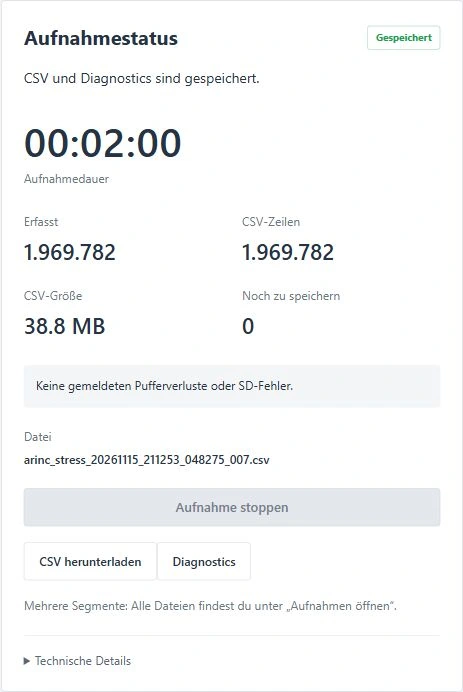
Choose the inputs before the test and record their timestamped traffic to microSD. When a fault appears, you can take the recording back to your desk or share the file with the engineer investigating it.
⤢Recording status from a two-minute bench capture.
Replay a recording on the bench
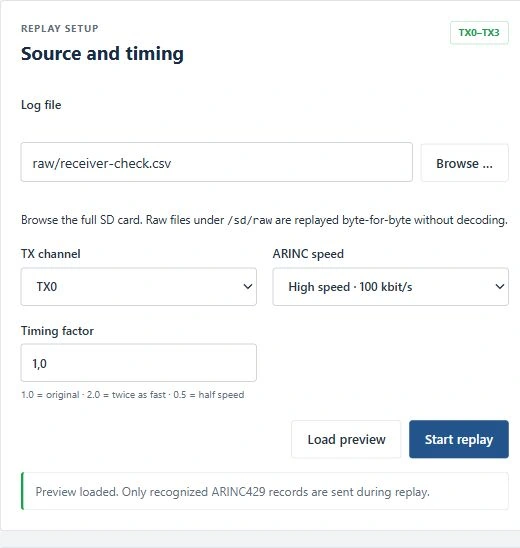
When a colleague sends you a log from a failed test, you can give your receiver the same sequence of messages. Select the recording on the microSD card, choose an output and start replay. Preserve the recorded timing or slow it down to follow the response.
Replay outputs ARINC 429 · RS-232 · Isolated UART
⤢ARINC 429 replay with an example recording selected on TX0.
Bring ARINC traffic into a serial test setup
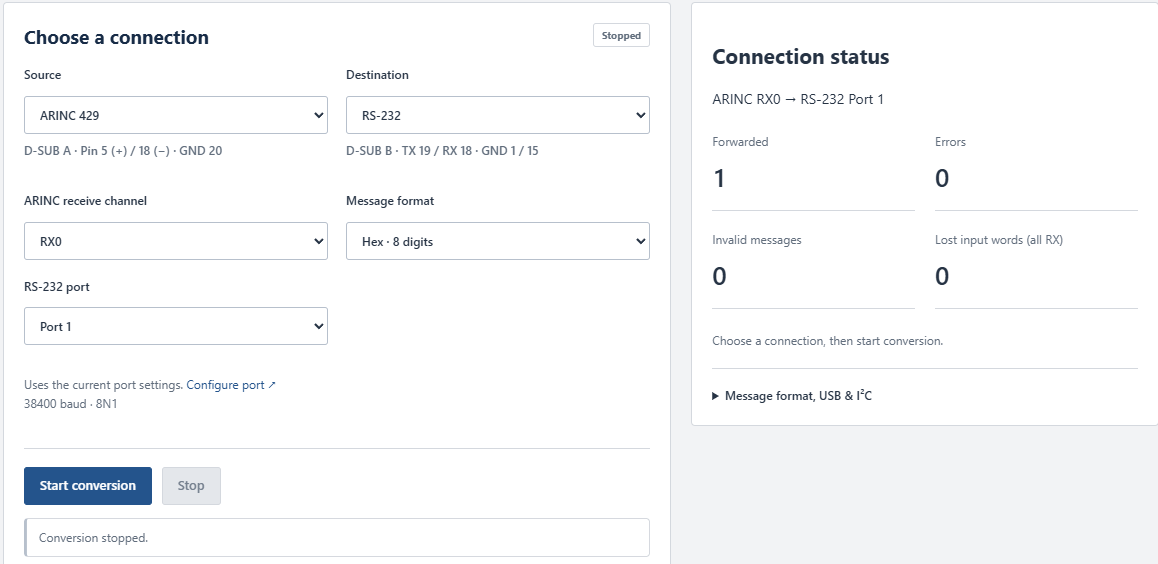
Forward words between ARINC 429 and a compatible serial or I²C device. In this example a test tool on RS-232 receives the words arriving on ARINC RX0. USB output is also available for collecting words on a laptop.
⤢One word forwarded from ARINC RX0 to RS-232 port 1 in a firmware test.
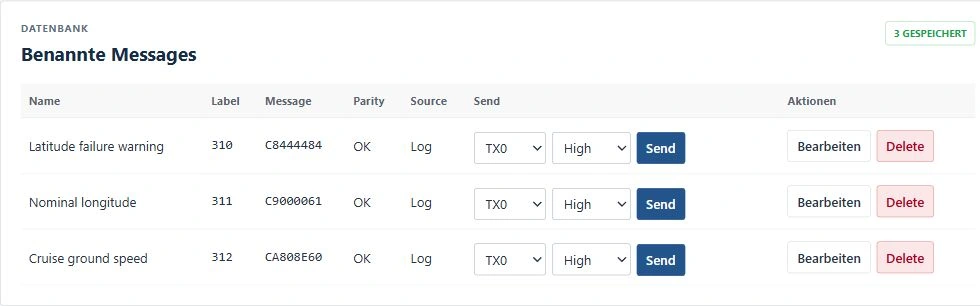
Keep test inputs ready to send again
Save an ARINC 429 word under a name you will recognise. Build a small set of normal and fault inputs, then resend the one you need when checking a software change.
⤢Three named example messages with individual send controls.
Bench connections
What you can connect
Use D-sub A for ARINC 429. D-sub B carries serial, CAN, I²C and digital I/O. The two-page datasheet lists the connector assignments and interface settings.
Interface
On the instrument
On the bench
ARINC 429
8 receivers · 4 transmitters
Stand in for a transmitter, check what a receiver sees and replay recorded words.
RS-232
2 independent ports
Talk to serial equipment, record a session and send it again during a retest.
Isolated UART
1 transmit / receive port
Exchange serial messages with a device that needs an isolated connection.
Classic CAN
1 port
Watch CAN traffic and send a known frame to check how a node responds.
I²C
Master
Exchange words with a compatible peripheral or connect it to an ARINC message route.
Digital I/O
4 inputs · 2 outputs
Watch input state changes and switch outputs to exercise discrete signals.
Join AVBI’s own Wi-Fi network when you are working at a standalone bench, or connect it to your lab network. Open the device address on your laptop, tablet or phone to control the test. The instrument handles the bus traffic and saves recordings to its microSD card.
AVBI technical datasheet
Interface settings, connector assignments and capture and replay behaviour. Preliminary · 2 pages · PDF